
Real app exports // Fictional example show
One PDF. Both perspectives.
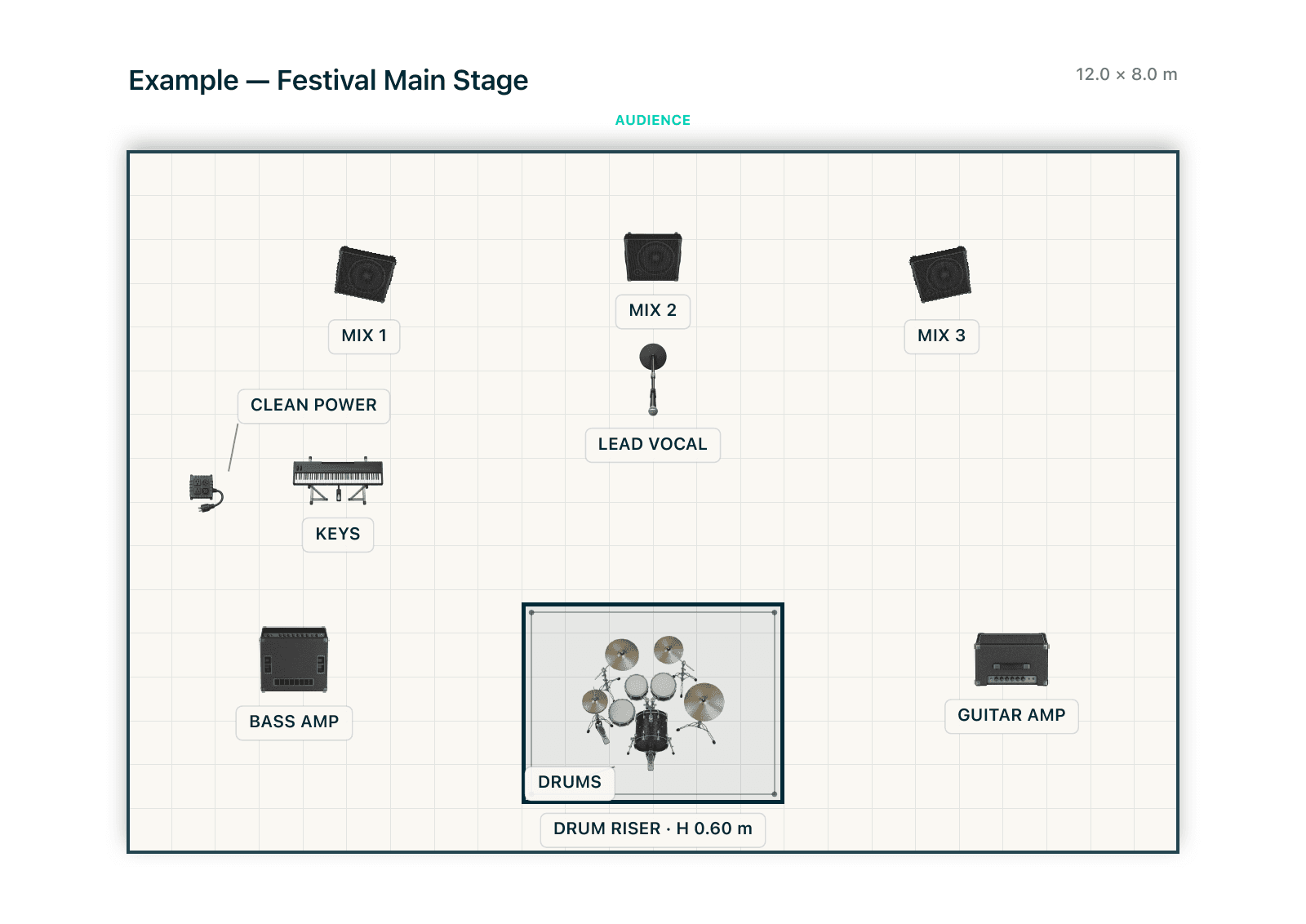
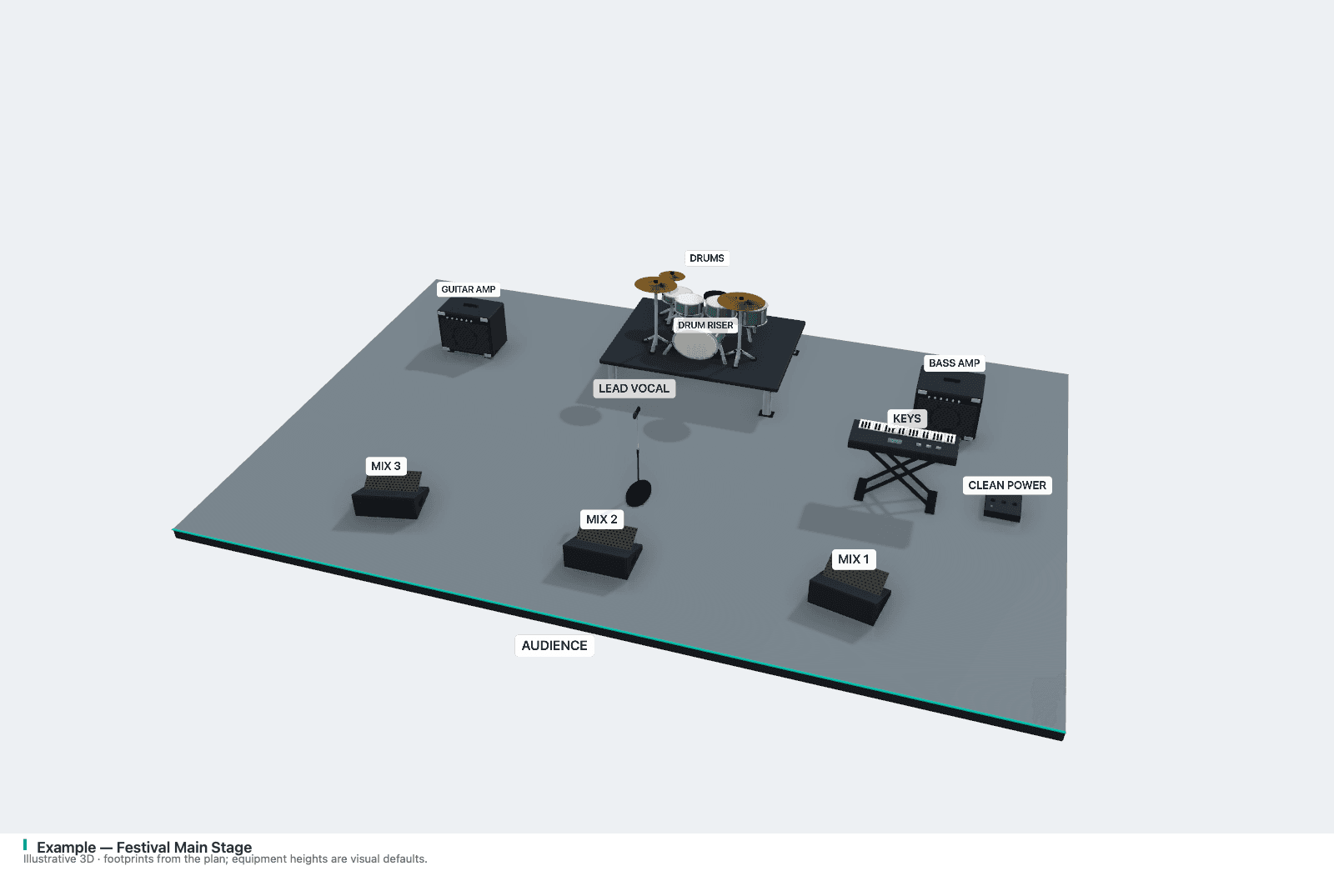
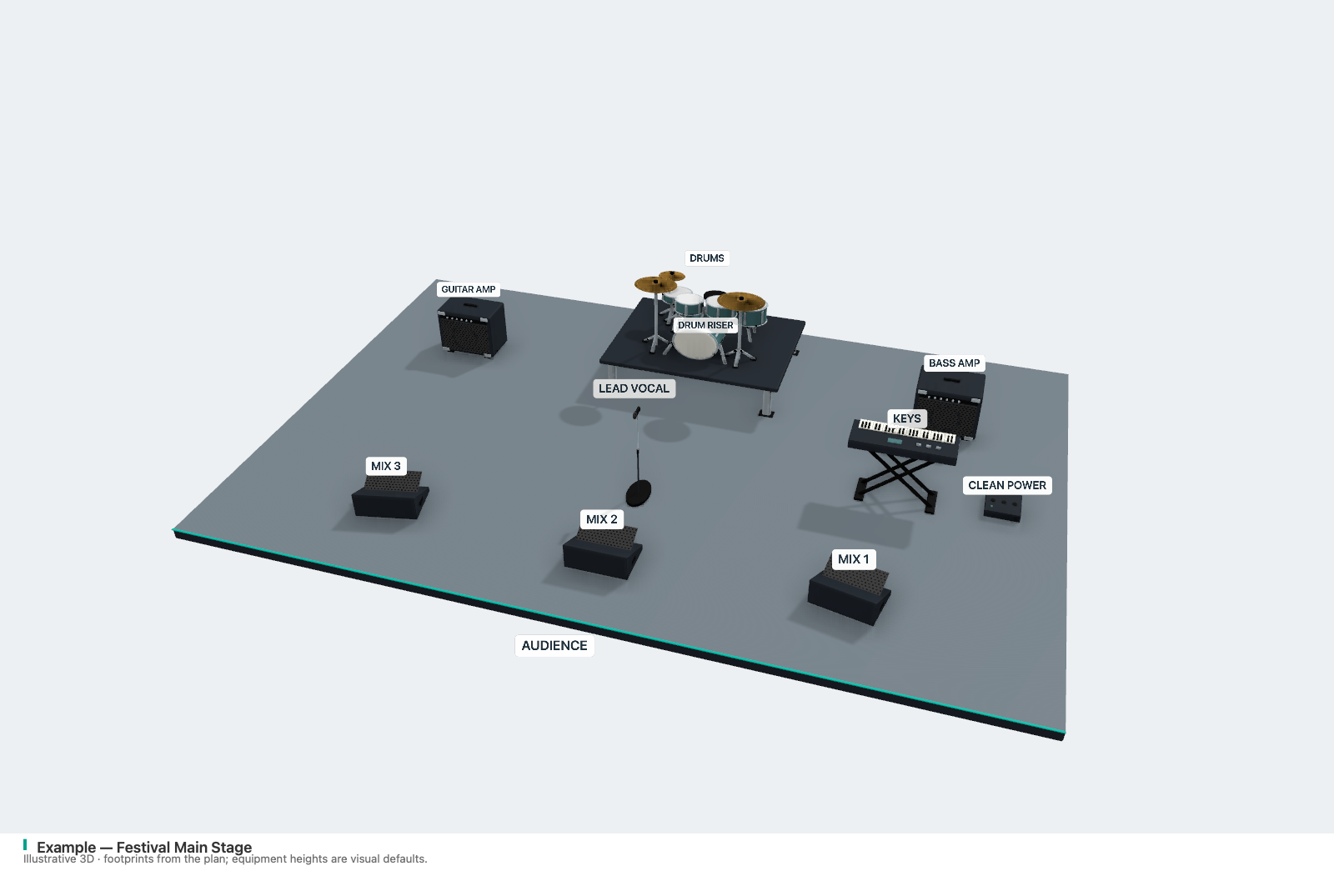
Open the fictional Festival Main Stage example: the technical plan comes first, followed by the 3D presentation and three pages of inputs, monitor mixes, equipment and notes. The 2D plan is viewed from above; the 3D image faces the stage from the audience.
One layout, a new perspective
A top-down plan communicates positions and production details. A perspective view helps people picture the setup: the drums on the riser, the keyboard beside the backline, and the monitors along the audience edge. Share both views from one project when discussing the next show.
3D View reads the positions, rotations, footprints and visible layers from your 2D document. Keep editing in the 2D canvas, then reopen 3D View to see the updated layout. There is no second drawing to maintain.
From a 2D plan to a 3D presentation
- Open an existing stage plot or choose Explore Example in the Welcome window. Arrange equipment and label the setup in the 2D editor.
- Choose 3D View in the toolbar. Drag to rotate, use the zoom controls, or choose Perspective, Audience or Top view. Reset Camera restores the framing.
- Choose Copy Share Image to paste the current view into a message or post, Save PNG… to keep an image file, or PDF + 3D… to include a 3D presentation page in the production PDF.
- Choose Back to 2D to make changes. Reopen 3D View to see them before exporting again.
Share a PNG or a PDF with both views
Copy Share Image puts the current perspective on your clipboard with a small Stage Plot Forge link in the caption. Review the title and visible labels before pasting it into a message or post. The app does not upload the project or create a public project link.
Save PNG exports the current perspective at 2400 pixels wide, with the project title and illustrative-height note in a separate caption area. Use it as a visual reference in a show advance or presentation.
PDF + 3D keeps the technical 2D plan on the first page and adds the 3D image on an extra page. Include the project's input list, monitor mixes, equipment and notes as needed. The 3D presentation option can be turned off in the PDF preview.
Available on Mac and Windows
3D View is included in Stage Plot Forge for Apple silicon Macs with macOS 14 or later, and for 64-bit Windows 10 version 22H2 or Windows 11. The desktop app renders locally and keeps day-to-day editing and export available offline.
Try every feature for 14 days. The Mac App Store trial is activated through your Apple Account and does not renew or charge automatically. Direct Mac and Windows trials start on first opening. One-time purchases are separate between Apple and the direct/Windows editions; see the download page for each edition's price and activation details.
What the 3D view represents
Equipment models are illustrative representations of instrument and equipment families. Their heights are visual defaults; they are not measurements of the equipment you will hire. The 2D plan remains the technical reference.
Risers use their saved height, with a default when no height is set. Equipment is visually raised when the centre of its symbol sits over a riser. This is a display convention, not a physical-support calculation.
Custom artwork and symbols without a suitable model appear as labelled schematic bases, using the original artwork where available. The view does not calculate rigging, loads, collisions or clearances. Appearance may vary slightly between Mac and Windows.
3D View questions
Can I edit the stage plot in 3D?
Editing takes place in the 2D canvas. 3D View is a separate presentation view of that document. Return to 2D to move, rotate or resize equipment, then reopen 3D View to see the changes.
Can I export a 3D stage plot as a PNG or PDF?
Yes. Copy Share Image puts the current view on your clipboard for pasting into a message or post. Save PNG exports it at 2400 pixels wide. PDF + 3D adds a presentation page while keeping the technical 2D plan and production-data pages available.
Does 3D View work in a web browser?
3D View runs inside the Stage Plot Forge desktop app on Mac and Windows. The comparison on this page switches between real exported images. Rotation, zoom and export are available inside the app.
Is 3D View still in beta?
3D View graduates from Beta in version 1.1. Compact numbered markers and an equipment legend identify instruments without placing long names over the stage. It is included in the 14-day trial. Store updates become available after approval.
Are equipment heights and models technically accurate?
Equipment heights are illustrative defaults and the models represent equipment families. Use the 2D plan and confirmed production specifications as your technical reference. The 3D view is for presentation, not rigging, load, collision or clearance calculations.
Turn the next advance into a clear production pack.
Choose your Mac or Windows edition, see how to activate its 14-day trial, and compare one-time purchase options. Apple and website purchases are separate.
Download Stage Plot Forge